
If you land, the Bayanat line shows a partner network, but apps have no internet — Data Roaming on the Bayanat eSIM is usually still off. Turning it on is required. Turning home-SIM roaming off protects you from surprise bills.
Before you start
- Bayanat eSIM already installed.
- You are in a covered country for your plan.
- Know which line is Bayanat vs your home number.
iPhone — Bayanat line
Settings → Cellular → tap the Bayanat / secondary line → turn Data Roaming ON. Then Settings → Cellular → Cellular Data → select Bayanat (or allow it for data).
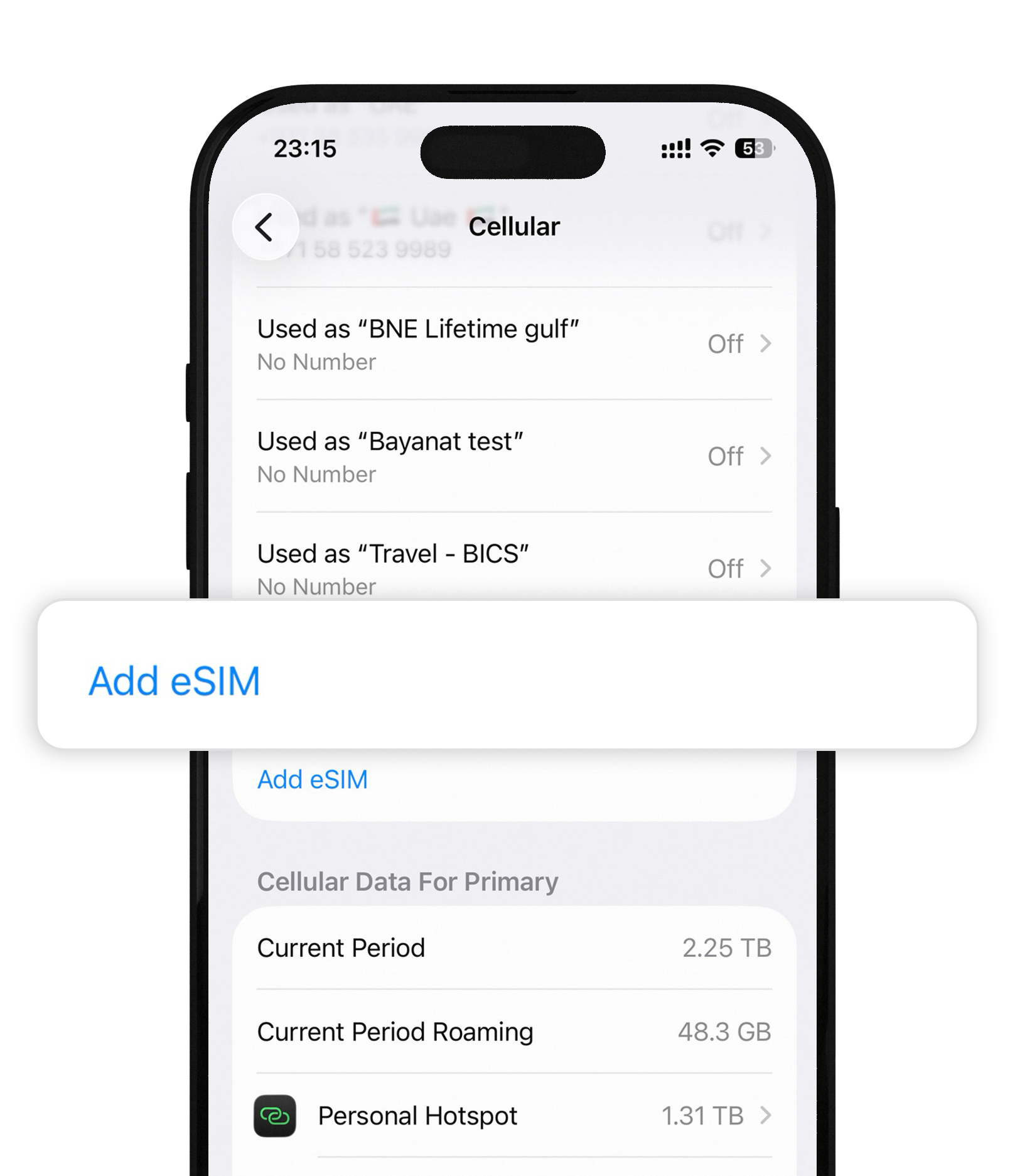
iPhone — home line
Open your primary/home line → turn Data Roaming OFF. You can keep the line on for calls and SMS. This stops your home carrier from using roaming data.
Android — Bayanat SIM
Settings → Network & internet → SIMs → select Bayanat → enable Mobile data and Roaming. Set Bayanat as the data SIM.
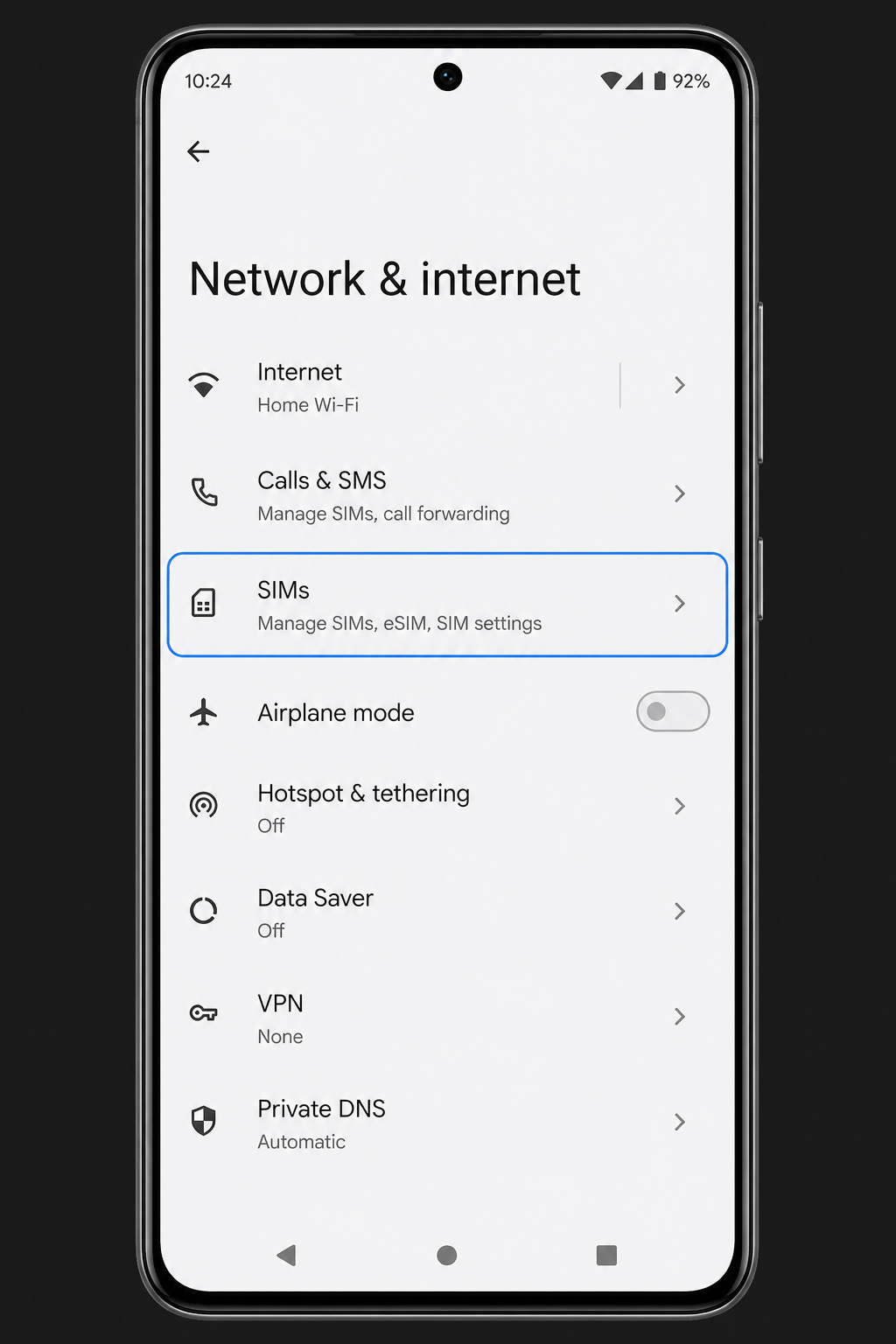
Android — home SIM
Open your home SIM → disable Roaming (and optionally mobile data on that SIM). Confirm Bayanat remains the preferred data SIM.
After install
- Open a browser or maps to confirm data works.
- If still offline: Airplane mode on/off, or restart.
- Confirm your plan has started (first attach in-country for many bundles/unlimited plans).
Quick answers
Will enabling roaming on Bayanat cost extra?
No — “roaming” on the Bayanat line means allowing it to use partner networks included in your prepaid plan. You already paid in the app.
Why turn home roaming off?
If both lines can use data, phones sometimes prefer the home SIM abroad and your carrier bills roaming. Keep home roaming off for data.
Our team replies 24/7 — include your order email and a screenshot if you can.