
Most “broken” installs are already complete, or need Data Roaming on the Bayanat line. Work through these in order before contacting support.
Before you start
- Note any exact error text on screen.
- Confirm you purchased a plan that covers the country you are in.
- Have the Bayanat app open to check Install status and QR.
Stuck on “Activating…”
After install, iOS/Android sometimes stays on Activating. Hard restart the phone (force restart — not just lock screen). After reboot, open Cellular / SIMs and check if the Bayanat line is listed and can be turned on.
“Unable to Activate eSIM”
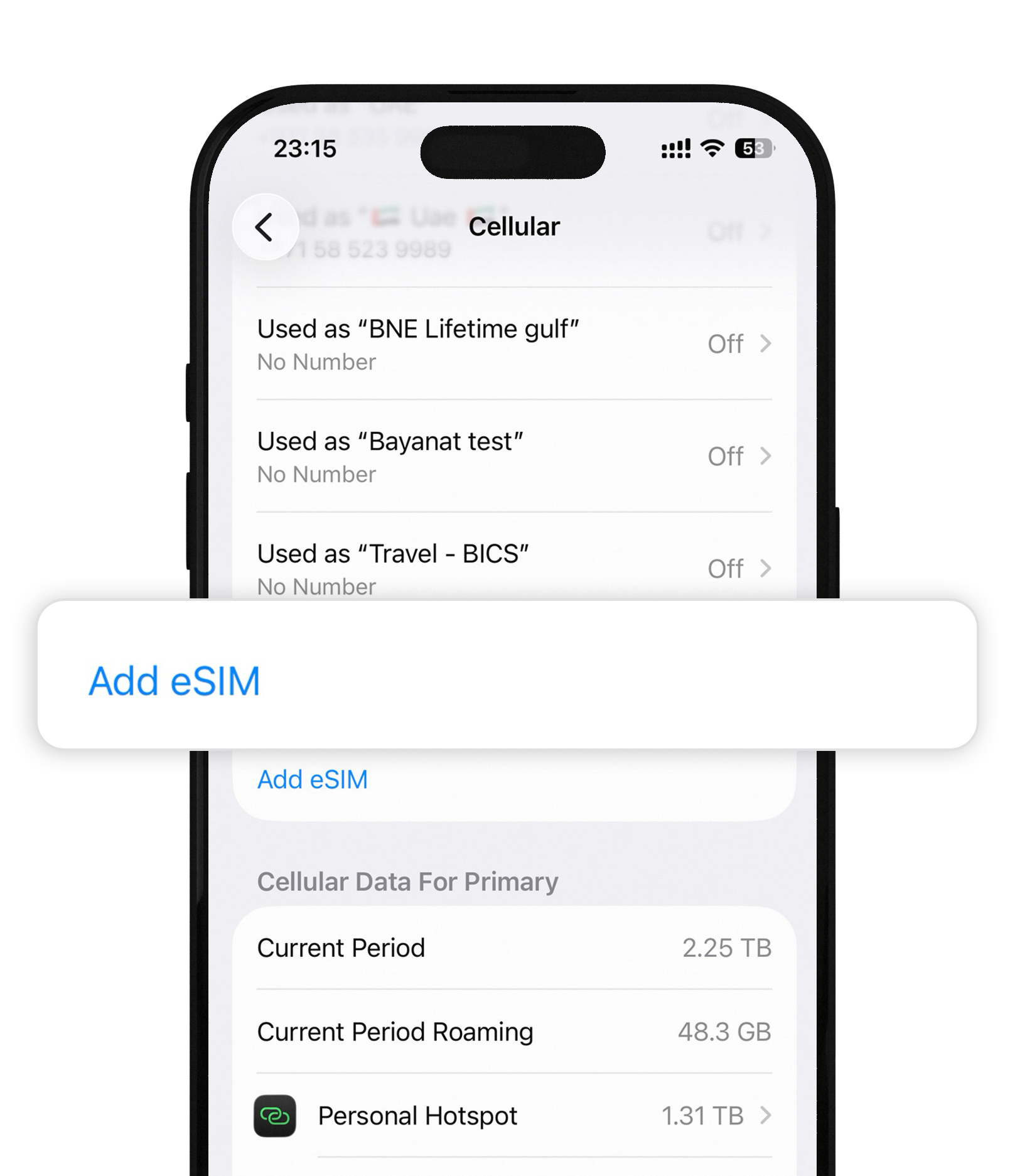
Open your phone’s eSIM / Cellular list. If Bayanat is already there, install succeeded — do not keep retrying blindly. Use that line and enable roaming. If it is not listed, return to the Bayanat app → Install eSIM and try once more on stable Wi‑Fi.
Connected to a network but no internet
Turn Data Roaming ON for the Bayanat eSIM only (Settings → Cellular → Bayanat → Data Roaming). Turn roaming OFF on your home SIM. Set Bayanat as the cellular data line. Toggle Airplane mode, then test Safari/Chrome.
Still offline
Confirm the plan covers this country in the app. Restart the phone. Forget and re-enable the Bayanat line. If the profile was deleted by mistake, contact support with your order email — we can often reissue while the plan is valid.
After install
- Path that fixes most cases: hard restart → Data Roaming ON (Bayanat) → home roaming OFF → Bayanat as data line.
- If you need us: support@bayanat.app or in-app chat with order ID and screenshots.
Quick answers
Does a hard restart delete my eSIM?
No. A force restart only reboots the phone. Your eSIM profile stays installed.
I deleted the eSIM by mistake
Contact support@bayanat.app with order details. If the plan is still valid we can often help you reinstall from the app.
Our team replies 24/7 — include your order email and a screenshot if you can.