
You need a short Wi‑Fi or mobile connection only to download the eSIM profile. After that, Bayanat provides its own data abroad. Install before you fly — the plan usually starts when you connect at your destination.
Before you start
- iPhone XS or later with eSIM support (Settings should show “Add eSIM” or “Add Cellular Plan”).
- Bayanat app installed and a plan purchased for your trip.
- Stable Wi‑Fi (home or airport) for the install step.
- Do not delete the eSIM after install — keep the profile even if you turn the line off until you need it.
Open Cellular settings
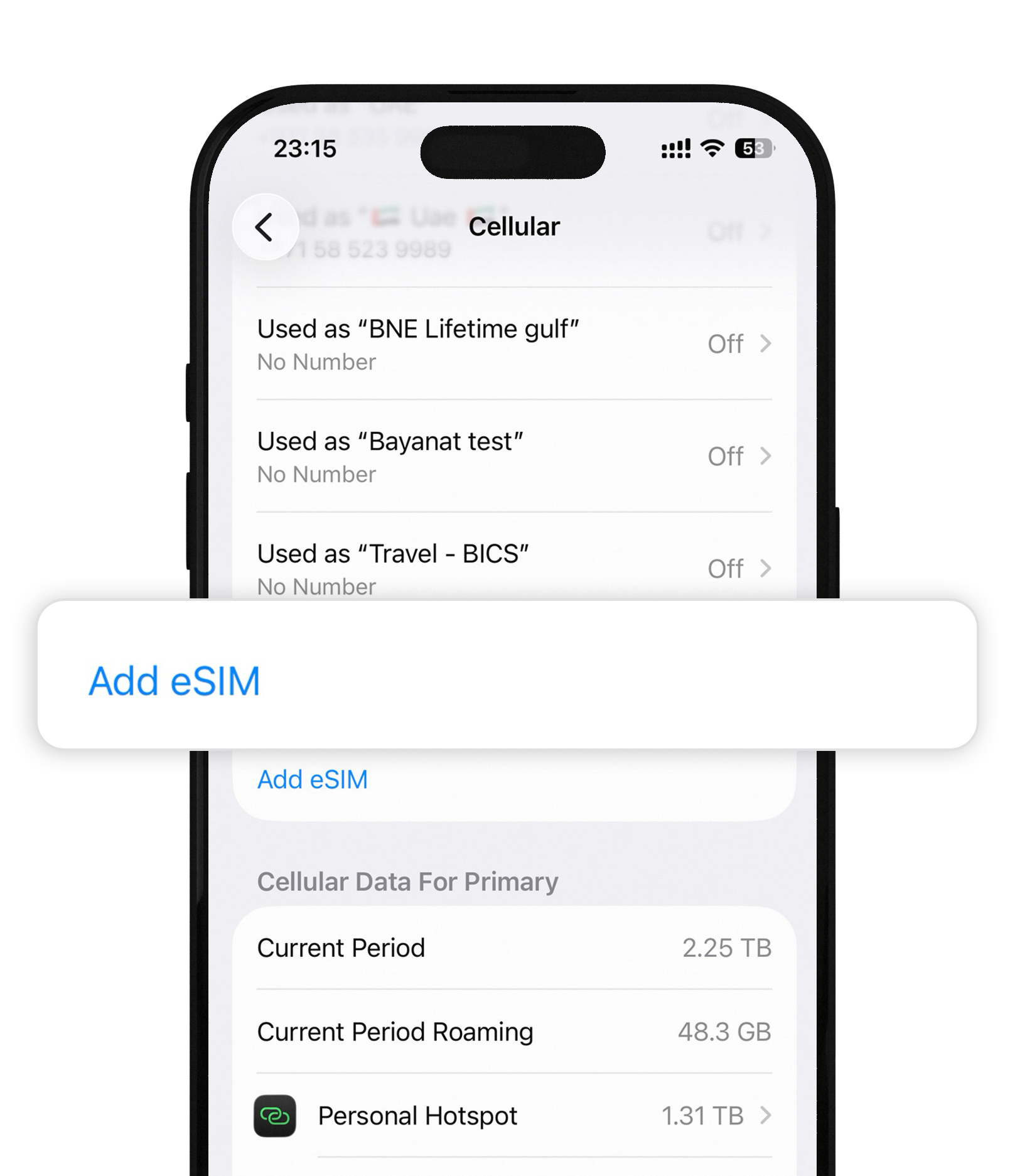
On your iPhone go to Settings → Cellular (or Mobile Data). Under your lines, tap Add eSIM. If you already see a Bayanat line listed, you may already be installed — skip to “After install”.
Choose Use QR Code
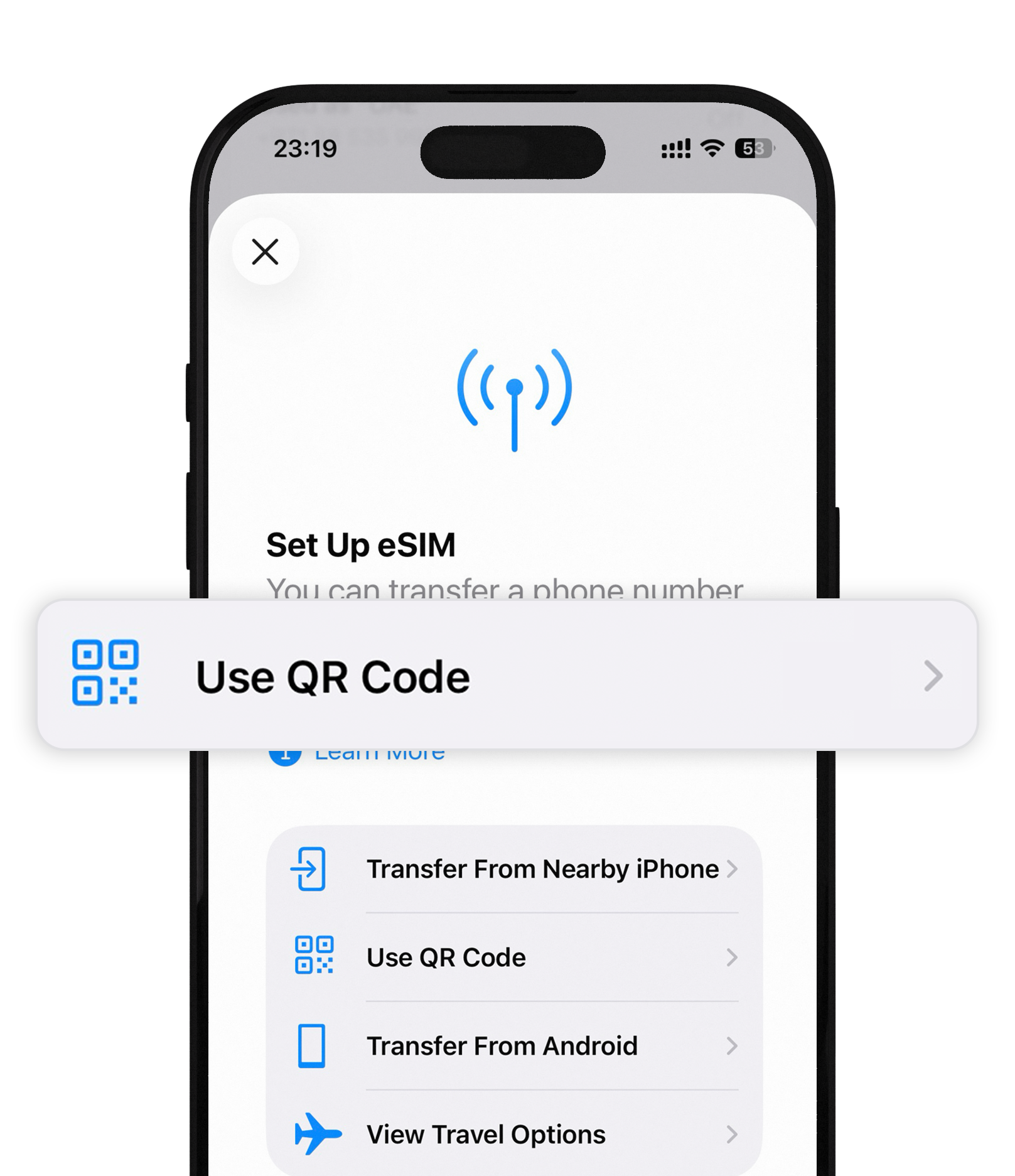
On Set Up eSIM, tap Use QR Code. Prefer this over transfer options — Bayanat gives you a QR (or activation details) in the app after purchase.
Tap Scan QR Code
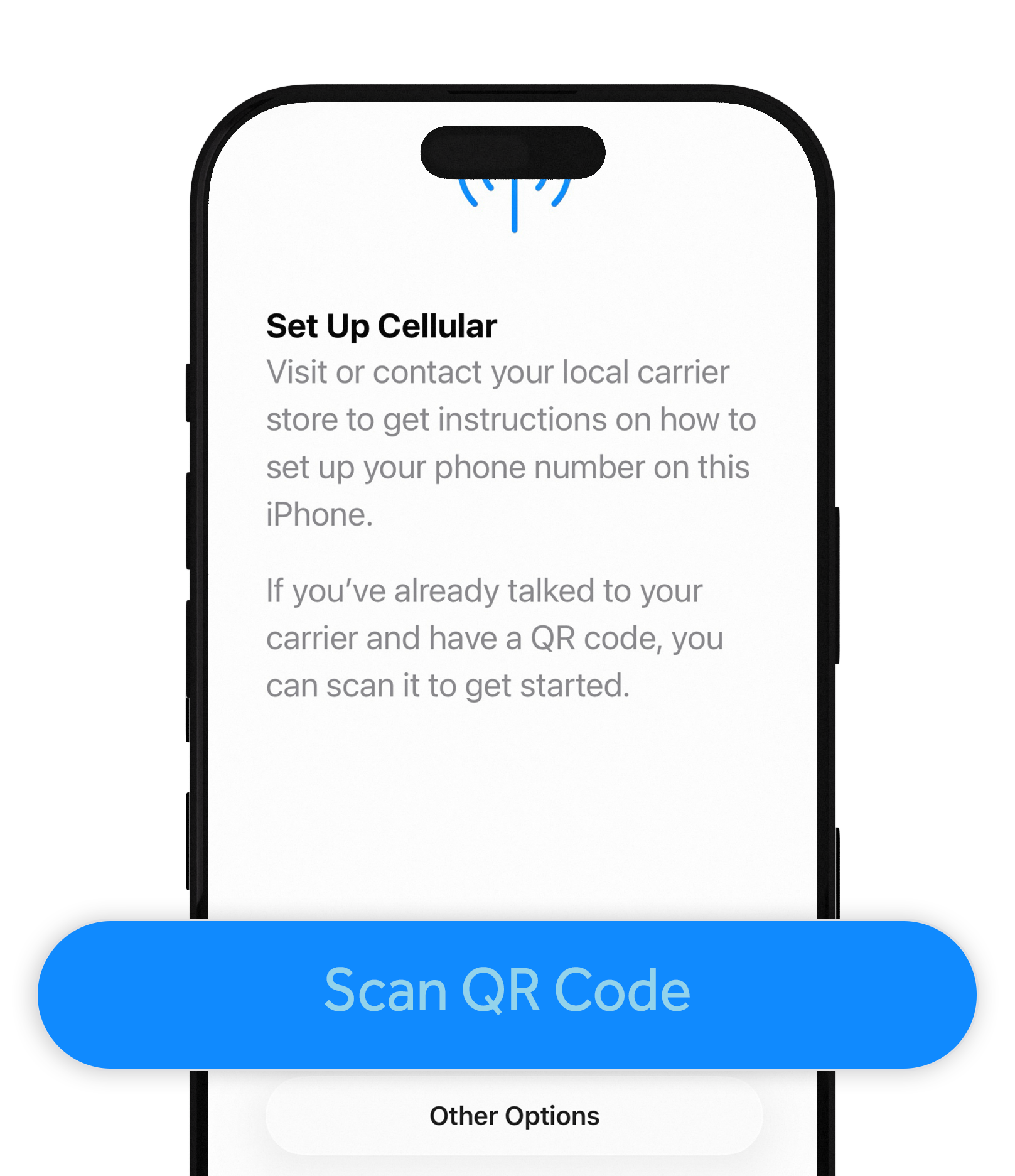
On Set Up Cellular, tap Scan QR Code. Keep the Bayanat app open on another device, or screenshot the QR and open it on a second screen so this iPhone can scan it.
Scan and finish
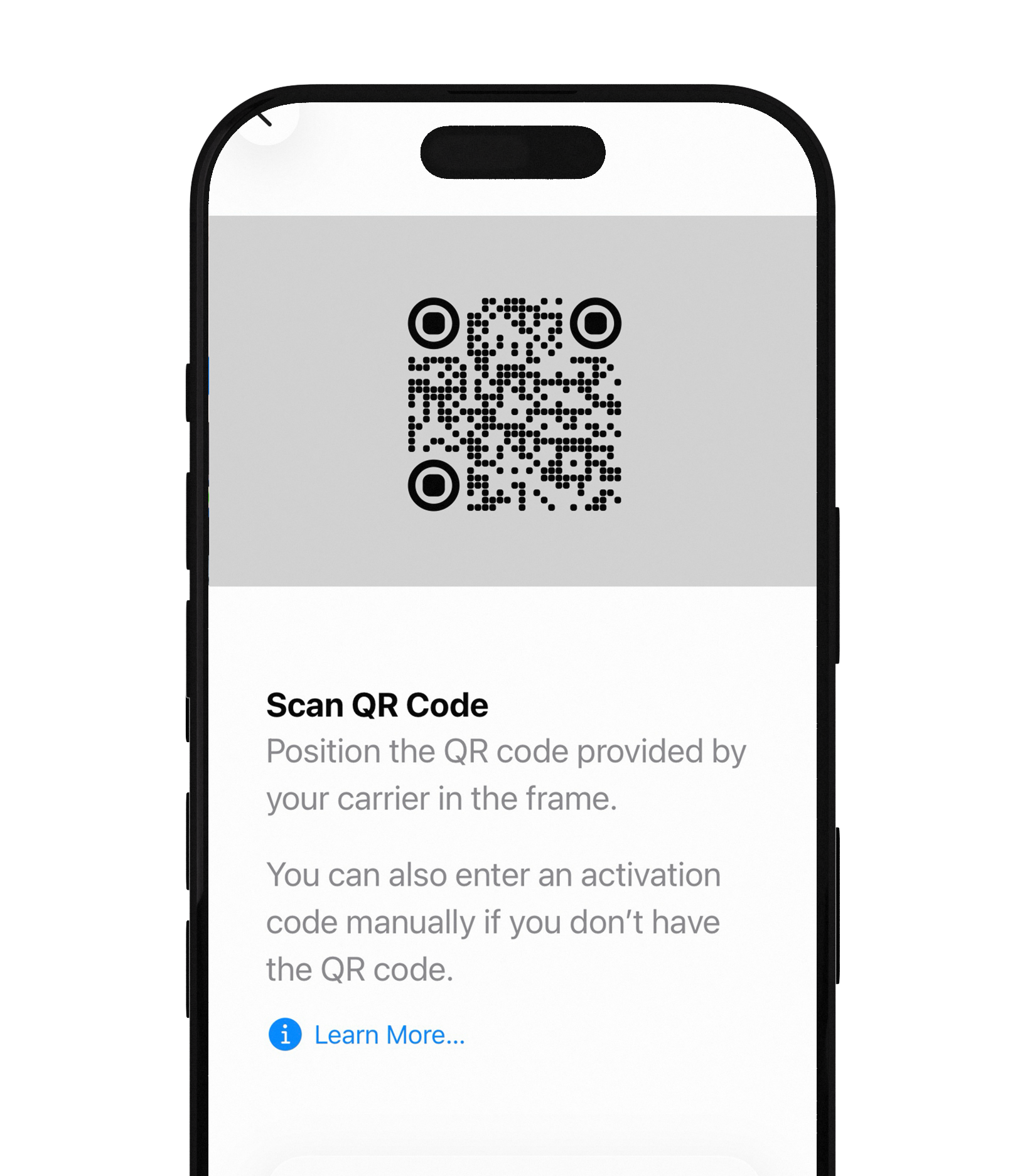
Center the Bayanat QR in the camera frame. Follow the on-screen prompts, label the line (e.g. “Bayanat”), and choose it as secondary if you keep your home number for calls. When asked about cellular data, you can set Bayanat as the data line when you arrive.
After install
- At your destination: Settings → Cellular → select the Bayanat line → turn Data Roaming ON.
- Turn Data Roaming OFF on your home/primary SIM so your carrier cannot bill roaming data.
- Set Cellular Data to the Bayanat line (or allow the phone to use Bayanat for data).
- Open maps or a browser — you should be online on partner networks within a minute or two.
Quick answers
Can I install before my flight?
Yes — and we recommend it. Install on Wi‑Fi at home. Bundles and unlimited plans typically activate when you first connect at the destination; LifeTime stays on the device until used.
What if I don’t have a QR on screen?
Open the Bayanat app → your eSIM → Install / QR code. You can also use Manual Entry with the SM-DP+ address and activation code shown in the app or email.
Dual SIM — will I lose my number?
No. Keep your home SIM for calls and SMS. Use Bayanat for data only. Turn off data roaming on the home line.
Our team replies 24/7 — include your order email and a screenshot if you can.